Showing posts with label iPhone. Show all posts

Thursday, 17 March 2016

Increase your 16 GB iPhone Memory to massive 2128 GB

Increase your 16 GB iPhone Memory to massive 2128 GB

You can upgrade your 16GB iPhone to massive 128GB in just $60

Tip: If you are low on storage then this video is definitely for you

Despite taken huge strides in its mobile operating system, Apple has prevented the storage on its iPhone to be expandable through a microSD card. This has caused a lot of problems for consumers, but profitable for Apple as it rakes in huge revenue for the company. This is because Apple generally charges a $100 premium if you want to upgrade the storage of your iPhone by choosing another model.
However, in just 30 minutes, this video shows how easy it is to increase the storage of your smartphone from 16GB to 128GB and best of all, it only cost the gut $60 to make it all happen. China’s Shenzhen market is where all the magic takes place, but in order for you to increase your storage, you will need to have a fair amount of trust when you give your iPhone to be upgraded. This is because your smartphone is going to be torn down and by removing the memory chips inside and replacing them with high capacity ones, you will be able to carry around all of your media for the foreseeable future.
Keep in mind that while this will effectively increase your storage from 16GB to 128GB, it will void your warranty. However, if your iPhone’s warranty period is already over, you should give this a try at your own risk. The engineers replaced the existing memory chip, which belongs to SK Hynix and replaced them with a Toshiba flash memory, and as stated earlier, the entire process took just 30 minutes. After a couple of intricate steps, it should also be noted that the data was not wiped clean and was present inside the phone just the he left it.

Wednesday, 10 December 2014

How To Jailbreak iOS 7

How To Jailbreak iOS 7

Jailbreaking your iPhone or iPad is a risky process that we can't unreservedly recommend, but it remains popular among those who wish to install unofficial apps (such as those on the Cydia marketplace) on their smartphone or tablet. Here's how to jailbreak your iPhone or iPad in iOS 7 - and iOS 6 and earlier. 
(What is jailbreaking? In essence it means bypassing the locks put in place by Apple on its iPhones and iPads, and thus gaining access to a large number of apps that Apple hasn't authorised. 

How to jailbreak an iPhone: A warning

But first... Some of the unofficial apps that you'll get access to after jailbreaking are pretty tempting, and may offer features you'd never otherwise be able to access;blocking a phone number on an iPhone, for instance, wasn't possible officially untiliOS 7 launched, but an app on Cydia (where you can download apps for jailbroken iPhones and iPads) let you do it easily. Read: Pros and Cons of jailbreaking an iPhone.
Cydia on iPhone

How to jailbreak an iPhone: Cydia is the app that lets you browse and download further unofficial apps

So why doesn't everyone jailbreak? Well, for one thing it's by no means straightforward, as we'll see shortly. Jailbreaking is also legally ambiguous, risky, and prone to void any warranties you have with Apple. We advise you to think long and hard before going ahead with the jailbreaking process.
Apple itself offers advice on the subject of jailbreaking (although you may feel that the company is biased in this respect, since it wants to continue getting its cut of the revenue from official app sales). In this tech note Apple suggests that jailbreaking your iOS device may lead to security vulnerabilities, instability, shortened battery life, unreliability, disruption of services and inability to apply future software updates. It may result in Apple denying service for your device.
Nonetheless, many Apple fans have been jailbreaking iOS devices for years without encountering these issues. But once they've jailbroken such a device, they understand that they should expect no help from Apple if it causes them trouble in the future. With choice comes responsibility.

How to jailbreak iOS 7 (and iOS 6 and earlier)

We had to wait for a bit, but the jailbreak tool for iOS 7 has been launched by the Evasi0n team. (The Evasio0n team offer one word of warning, however: "Over The Air updates of iOS 7 are known to create an issue and make the jailbreak fail. Some devices are then stuck on the Apple Boot Logo. Until we fix that, please restore your device to 7.0.4. with iTunes first.")
UPDATE: iOS 7.1, which is still in beta, is set to close the loophole that allows Evasi0n's iOS 7 jailbreak tool to work. Bear this in mind when considering whether to update your operating system to iOS 7.1 when the full version comes out.
Before you start, back up your iPhone or iPad, and switch off the passcode (at least for the duration of the jailbreak process).


Before jailbreaking, be sure to back up your data
You'll need to download the Evasi0n7 tool, which is available for Mac OS X and Windows, and is compatible, the makers claim, with all models of iPhone and iPad running iOS 7.0 to iOS 7.0.4. The tool is available from mirrors on evasi0n.com
Download evasi0n for Mac
Downlaod evasi0n for Windows
Double-click the .dmg file to decompress it and an evasi0n window will appear on your desktop. Drag the evasi0n application out of the window to the desktop and launch it.
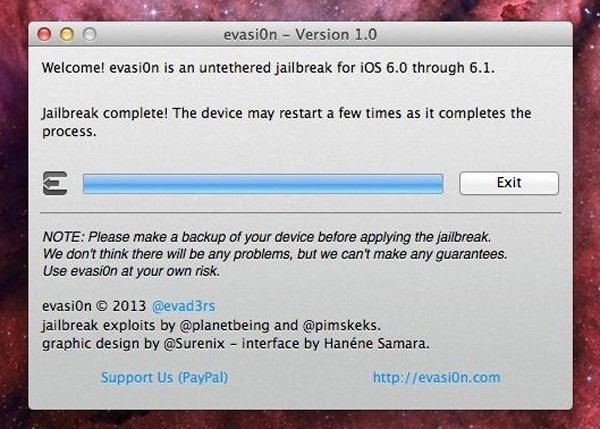
Connect your iOS device and click the Jailbreak button. evasi0n will retrieve some information from your device. The device will then reboot and prepare itself for the jailbreak. Don't do anything with your device during this stage.
evasi0n begins its work
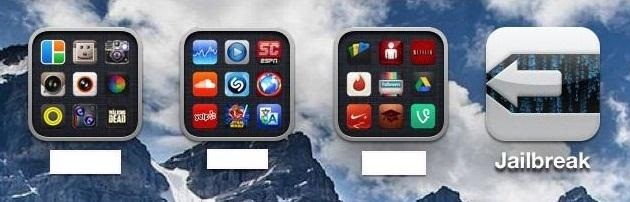
evasi0n will now install Cydia - the application that provides access to third-party apps - on your device. When instructed to by evasi0n, unlock your device by pressing the Home button and swiping the Slide to Unlock switch to the right. You should see a new Jailbreak icon on your Home screen. Tap it and evasi0n will carry on with the final stage of the jailbreak. You can now quit evasi0n by clicking the Exit button.


Don't touch your device until evasi0n tells you to
Your device will reboot, briefly display the evasi0n screen, show the Apple logo, and then show the evasi0n screen again, which details the progress of the jailbreak installation. Finally, your device is ready for you to use in the normal way.
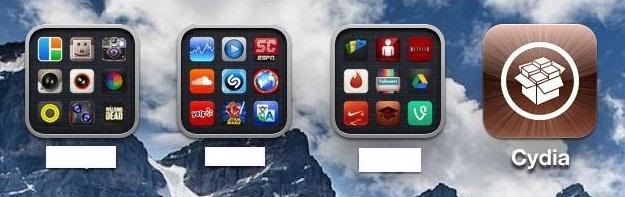
The one difference you'll see is a Cydia icon on the home screen. Tap it and Cydia launches, prepares its file system, and then quits. To then use Cydia as intended, tap its icon once again, choose your user type (User, Hacker, or Developer), tap Done, and the Cydia interface loads.
The version of Cydia you're using may need updating; older versions of Cydia may not support Cydia's newer third-party apps. To do that, tap the Changes icon at the bottom of the screen and then tap Refresh in the top left corner. If any updates are available (as evidenced by green check marks) tap the Update button in the top-right corner of the display. Cydia will download the latest updates and reboot the device.
What you choose to install is entirely up to you. Some people choose to install OpenSSH so that they can remotely access the device's file system via a standard FTP client. However, if you enable this feature, be sure to change your device's root password from the default "alpine," which is used by all iOS devices. Fail to do so and others around you could hack into your device. To learn how to change the password, tap the Root Password How-To link on Cydia's About screen.


Cydia is now in the house

How to jailbreak an iPhone: Future updates of jailbreaking tools

There was a decent wait between Apple releasing iOS 7 and a jailbreaking tool being released for the system - most likely because iOS 7 represented a more substantial update than most new versions iOS. As Apple releases minor and major updates to iOS, new jailbreaking tools (and updates to tools) will be released too, but there may again be a wait.
If you want to keep track of when jailbreak tools are launched in the future, two useful options are following @evad3rs on Twitter (that's the account used by evasi0n), and checking out the jailbreaking section on Reddit.
In the mean time, look out for scammers. Lots of unscrupulous companies and individuals claimed to have cracked iOS 7 before a reliable tool was released by the Evasi0n team, and offered to give you the jailbreak for a sum of money - often $50.

How to jailbreak an iPhone: tethered and untethered jailbreaking

Finally, some words on jailbreaking terminology.
Jailbreaking has been in a largely dormant state since the release of iOS 6. In that version of the mobile operating system, Apple closed many of the avenues that had once been used to crack iOS open.
Tethered jailbreaks require you to attach your iOS device to your computer and run an application to jailbreak it. If you later power off the device and then restart it, the jailbreak is wiped out, and you have to repeat the entire process.
These kinds of jailbreak were the first to be developed. But what prospective jailbreakers wanted was an untethered method, where the hack would remain in effect even after the device was switched off and on again.
That untethered jailbreak arrived in the form of evasi0n. Like jailbreaks before it, evasi0n doesn't unlock an iPhone (which would allow you to use the device with multiple carriers). Rather, it simply allows you to install third-party apps not approved by Apple via the Cydia store we mentioned earlier.
an iphone wraped with chains
Enjoy and don't forget to comment!

Sunday, 23 November 2014

Jailbreak iOS 6 and install Cydia

Jailbreak iOS 6 and install Cydia


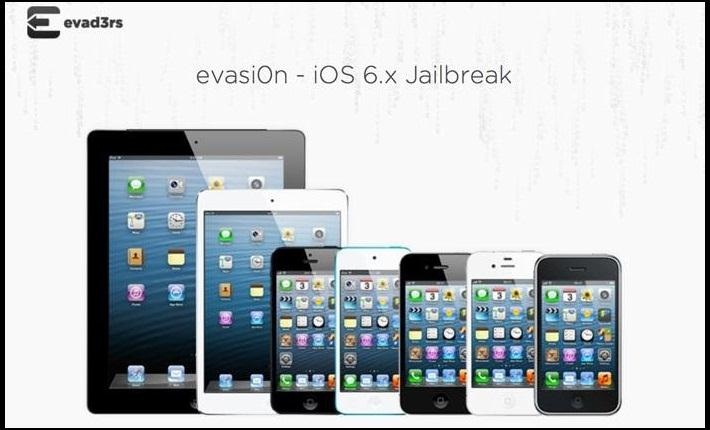
While the majority of America was watching the Super Bowl yesterday, the crew over at the evad3rs was finishing its work on their untethered iOS 6.1 jailbreak called evasi0n.
Well, the wait is finally over!
Evasi0n, which brings untethered jailbreak for devices running on iOS 6.x and powered by A5, A6 and A6X processors, has finally been released. This tool is compatible with all devices running iOS 6.0 through 6.1, including the iPod touch (4, 5), iPad (2, 3, 4), iPad Mini, iPhone (3GS, 4, 4S), and most importantly...the iPhone 5!

Prerequisites

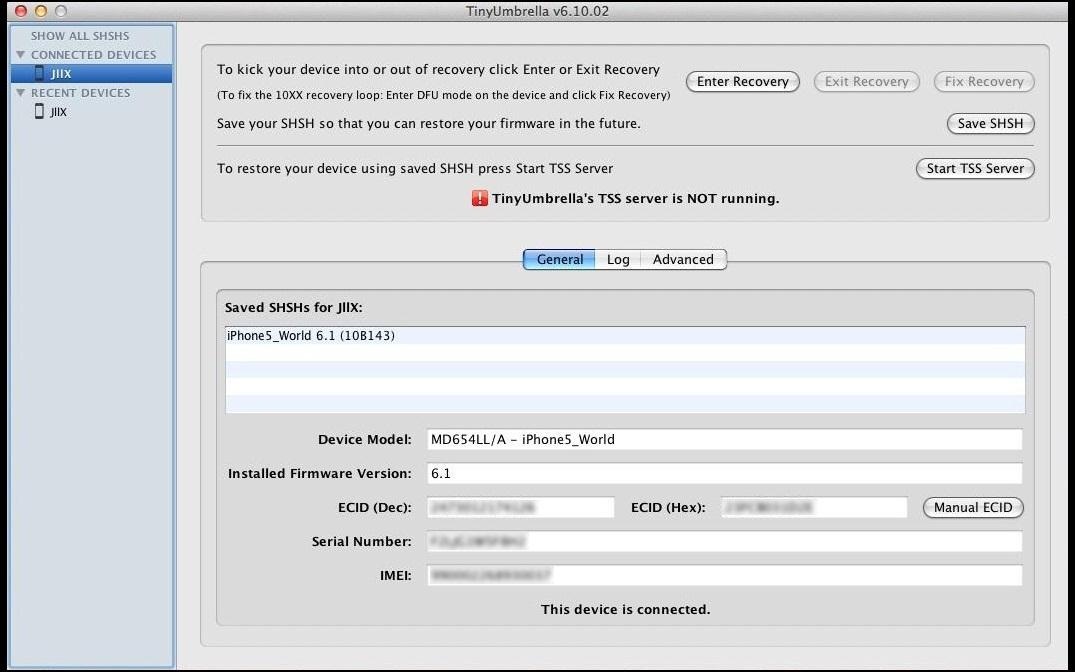
Before you start the jailbreak process on your iPhone 5 (and other devices), you'll need to backup your SHSH blobs for your iOS 6. It's important to save these files because then you'll be able to downgrade back to iOS 6.1 if newer firmware is released or an error happens during the jailbreak process.
If you don't save the SHSH blobs, there will be no way to get back to your original firmware.
To backup your SHSH blobs:
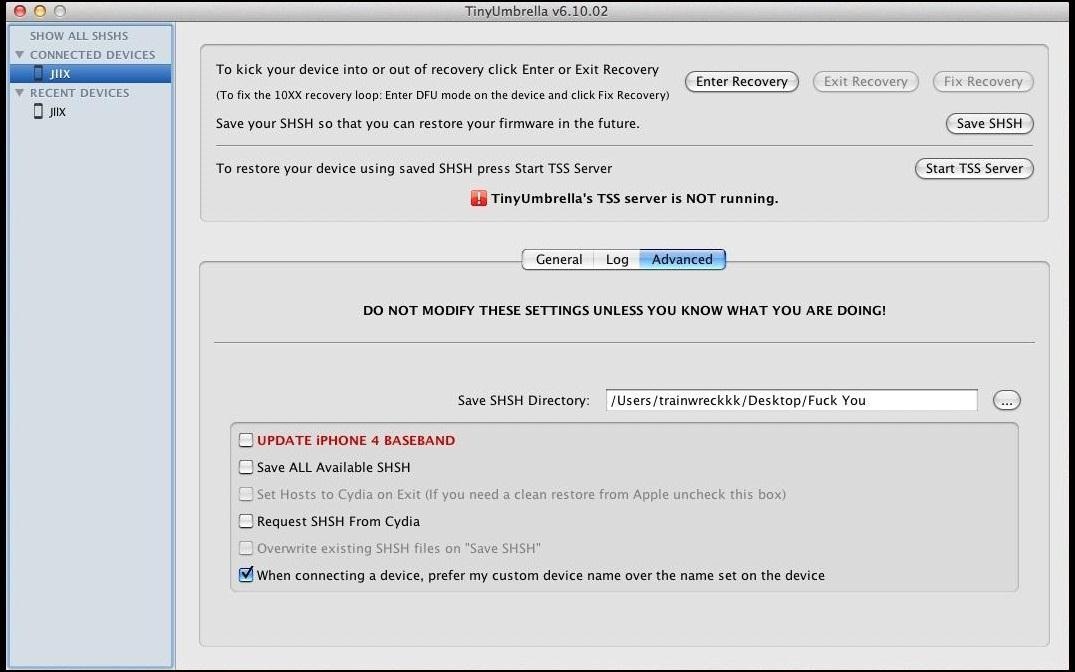
  • Download TinyUmbrella and run the app.
  • Connect your device and then select it from the upper left-hand corner of TinyUmbrella.
  • Click on the Advanced tab and uncheck the following: Save ALL Available SHSH and Request SHSH From Cydia.
  • Click on Save SHSH and your blob should be saved onto your computer. It will show up under Log if it is successful.
Now that your SHSH blobs are saved, you'll need to do a few more things before you start the jailbreak:
  • A computer, running Windows (XP minimum), Mac OS X (10.5 minimum) or Linux (x86 / x86_64).
  • Backup your device to iTunes (to save apps, photos, etc.).
  • Disable the lock passcode (it won't allow you to jailbreak the device with it).

Jailbreaking Your iPhone 5

To start the jailbreak, you'll need to:
  • Download the app specific to your device from evasi0n (If the site is lagging, you can download it from this alternative site).
  • Connect your device.
  • Click on Jailbreak.
  • Halfway through the jailbreak process, the app will notify you to tap on the evasi0n jailbreak icon that should now be downloaded on your device.
The process will then continue, taking about 5 minutes in total. Your device will then restart (a couple of times is normal).
Your device should now be jailbroken!
Open your device, click on Cydia (the directory of applications) and see the full potential of your Apple device!
Note: Jailbreaking your device voids the warranty, so be warned!
iOS 8 Glitch Lets you hide Stock Apps

iOS 8 Glitch Lets you hide Stock Apps

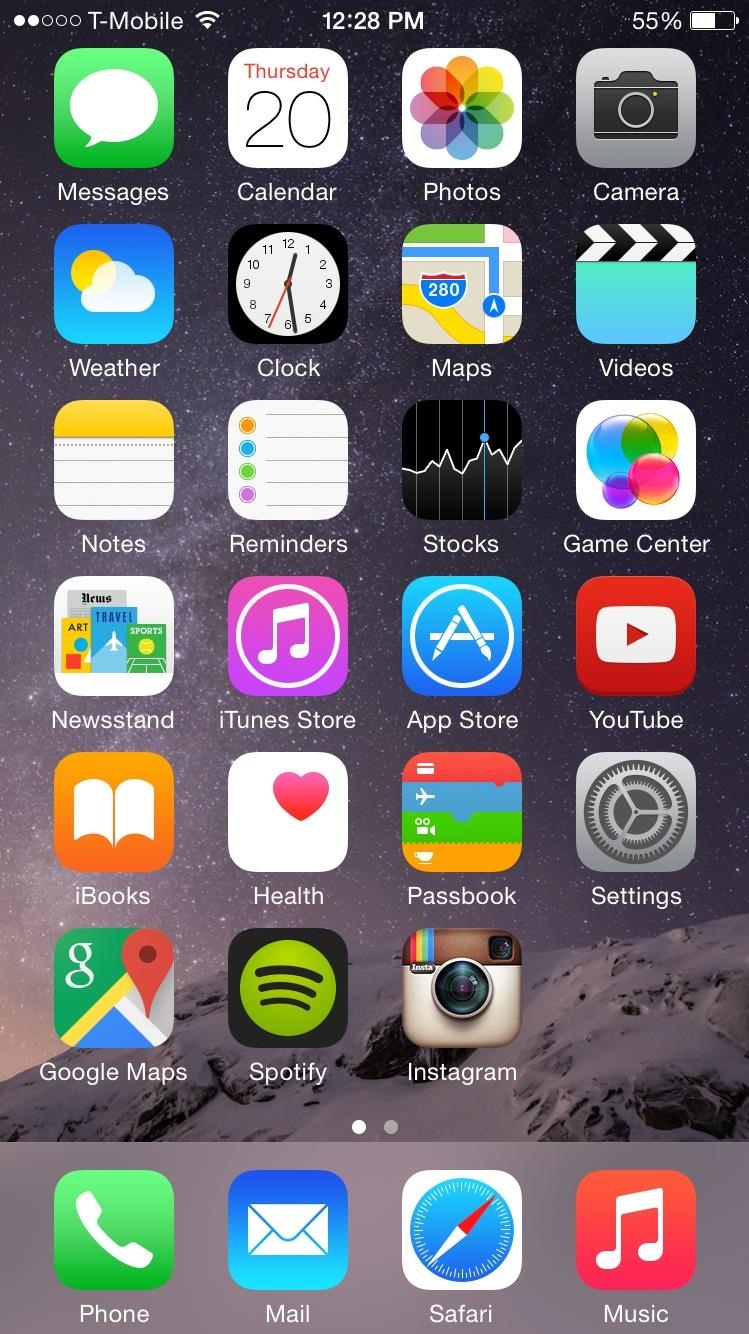
Apple's newer Tips app may definitely be helpful to some iOS 8 users, but personally, it's not telling me anything I don't already know. Like many other stock Apple apps that I don't use on my iPhone, I immediately hid Tips in a folder, placed that folder to the side, and forgot about it.
Unfortunately, although they're tucked away, they're still taking up unnecessary space on my home screen. There's always the folder-within-a-folder trick to hide them even more, but today I'll go a step further and guide you on how to actually remove these apps, all thanks to a recently discovered iOS 8 glitch shown off by Reddit user Patronu.

Will This Work for Your iPhone?

Considering that there are various iPhone models, old and new, that are still in use, you may be wondering if this trick will work for your particular device. I have personally recreated this glitch on an iPhone 4S, 5S, and 6, which were all running either iOS 8.1 or iOS 8.1.1. We could not get it to work on our iPad, though.

Step 1: Getting Your Home Screen Ready

Because this glitch exploits a particular formatting automation process, you'll need to place the stock app that you want to lose (in my case, Tips) in a specific area of the home screen.
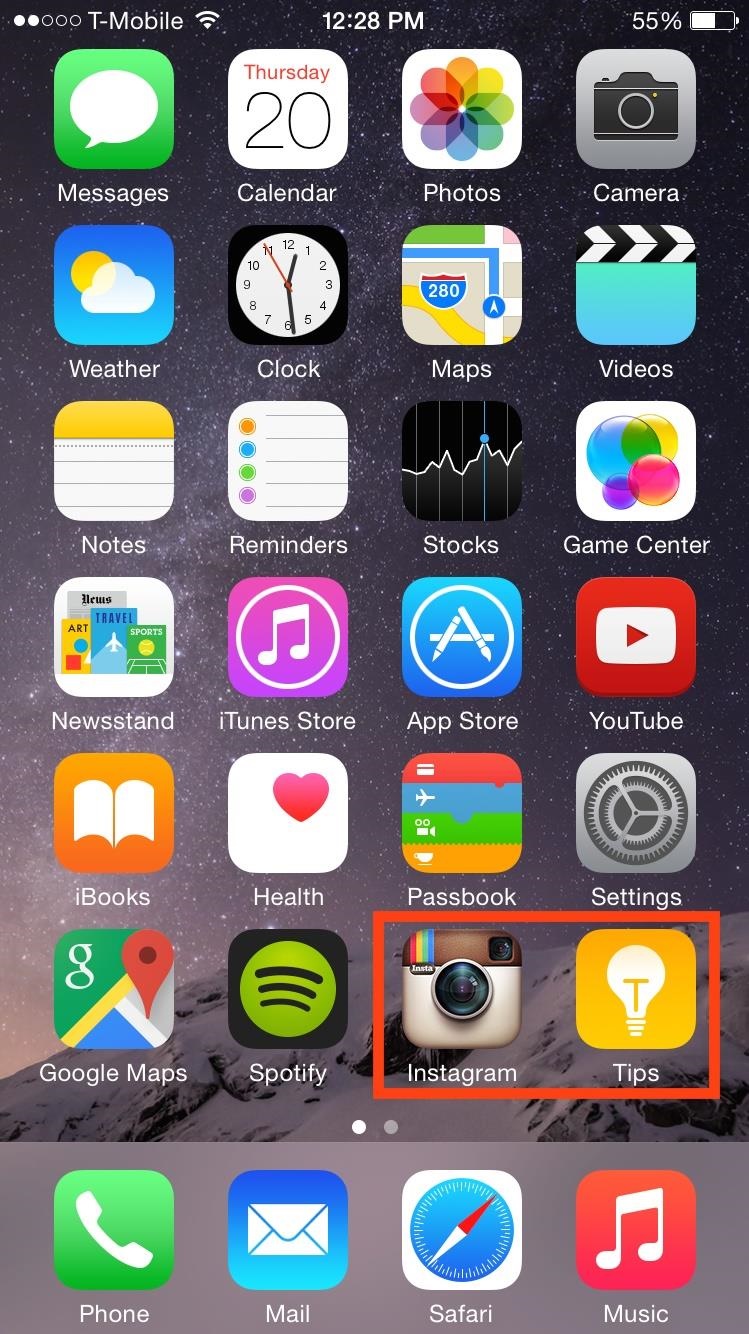
Essentially, all you need to do is have a home screen filled with apps, and the stock app as one of the last two along the bottom right. Take a look at the screenshots below for a better grasp.
[1] One empty spot for the stock app. [2] The stock app in its place, ready to go (literally).

Step 2: Using the Glitch to Remove a Stock App

This is an action that needs to be done quickly (see #7 below) in order to accomplish the end goal. It may take more than one try, but it will work.
Note: In this step, I will be referring to the stock app you moved into the bottom right corner as simply the "stock app," and the one beside it "the non-stock app" (even though a stock app should also work).
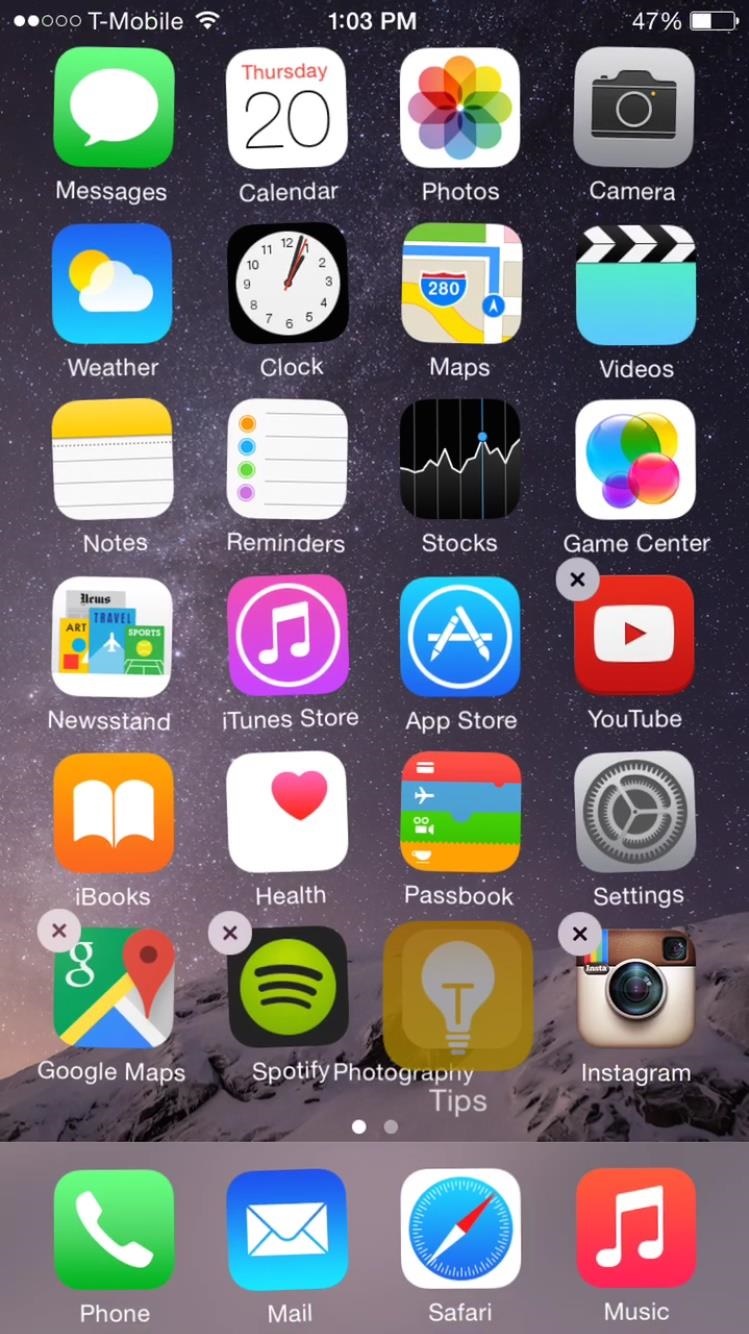
  1. Tap-and-hold on any app to enter editing mode
  2. Place the non-stock app on top of the stock app (this will create a new folder)
  3. Tap outside of the folder to go back to home screen
  4. Tap on the newly created folder to go back into it
  5. Move the non-stock app out of the folder and back on your home screen beside the folder
  6. Tap on the newly created folder once again
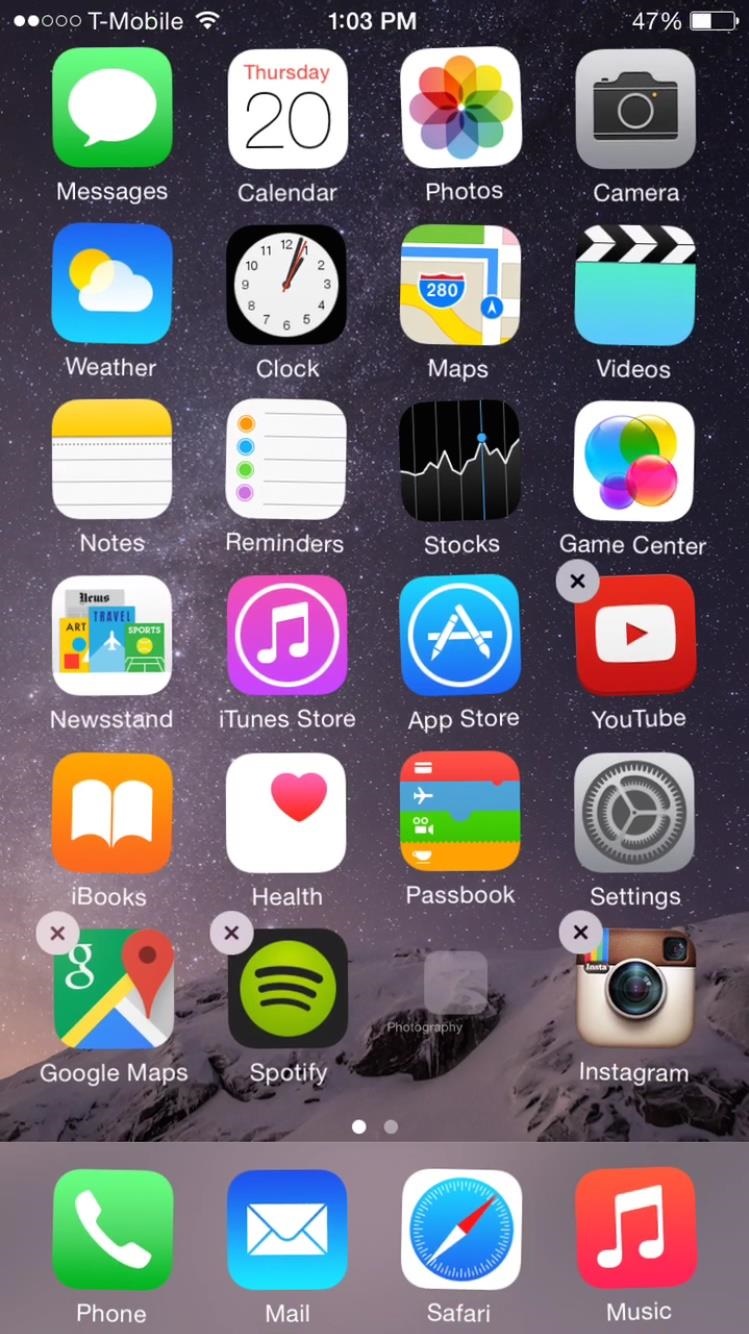
  7. Move the stock app out of the folder and quickly place it on the home screen exactly where the folder once existed
  8. If you did it fast enough, the stock app and folder will both disappear
Since it takes a perfectly timed action, it's a little tricky to get on the first try.

Step 3: Getting the Stock App Back (Optional)

So, what happened to that stock app? Nothing, it's just temporarily removed from the home screen due to a glitch. To get the app (or apps) back, all you have to do is restart your iPhone and it'll be back on the home screen. Needless to say, if you're iPhone restarts on its own for some reason, your hidden stock apps will reappear.
Just repeat the process above to get rid of them again.